ExaGear desktop review – Pi virtualisation
By Russell Barnes. Posted

Access a huge range of additional Linux (and even Windows) software using the Intel x86 virtualisation program

Take back control of your online data, with Raspberry Pi.
While there’s no shortage of great software for the ARM‑based Raspberry Pi, most Linux programs are compiled to run on Intel x86 processors.
This is where virtualisation software steps in. It sits between an x86 application and the ARM version of Linux and translates the x86 code to run on your Raspberry Pi.
The details
Price: £16 / $25
Maker: Eltechs
Website: eltechs.com
This review can be found in The MagPi 35
ExaGear Desktop creates a second system known as the ‘guest’ system. Once installed, you can switch between the guest and your regular (‘host’) system using the exagear and exit commands. Inside the guest system, apt-get and dpkg are used to install Intel x86 software. Tantalisingly, one software option is Wine, another layer application that is used to run Windows apps inside the Linux environment.

Setting up ExaGear
ExaGear includes a handy script for automatic installation, but we had to read through the manual instructions to discover which of the Debian packages to install. The choice varies depending on whether you have a 2G/2G or 3G/1G split between your user and kernel memory.
We followed the instructions to install nginx server software from our Raspberry Pi. After that, we downloaded and installed Skype inside the LXDE desktop. We then got Eclipse 3.8 up and running (albeit in a sluggish manner).
Performance
Performance takes a hit when moving from the host to the guest system, but it’s not as bad as you’d imagine. Even the more resource-intensive apps we tested, like Skype, ran perfectly well.
We installed LibreOffice in the host environment. LibreOffice took 20 seconds to launch in the host environment, and 52 seconds in the guest environment.
Where things started to go awry was in attempting to run 32‑bit Windows software via Wine. There were a lot of complications. You have to set up Raspbian with a 3G/1G memory split, then reinstall ExaGear with the right package. Then you need to install Wine (which required refreshing all the dependencies). After all this effort, it was surprisingly tricky to find compatible software; Wine compatibility documentation gets patchier the further back in time you go, and 32-bit support at the Raspberry Pi level (through two layers of middleware) means you can only run very old Windows software.
In all, we found ExaGear Desktop provided no practical use for Windows software, but was fantastic for running Linux x86 programs.
Last word
4/5
Once ExaGear Desktop is up and running, it becomes a neat solution for running a wider range of Linux software on your Raspberry Pi. The Windows aspect is interesting, but not practical.

Russell runs Raspberry Pi Press, which includes The MagPi, Hello World, HackSpace magazine, and book projects. He’s a massive sci-fi bore.
Subscribe to Raspberry Pi Official Magazine
Save up to 37% off the cover price and get a FREE Raspberry Pi Pico 2 W with a subscription to Raspberry Pi Official Magazine.
More articles

Take Back Your Clound in Raspberry Pi Official Magazine 165
We’re all-too accustomed to the feling of being watched on the internet. A search for any product leads to adverts, emails, and goodness knows how many bots tracking you. It feels weird and intrusive, and we aren’t being paranoid – they really are watching us. Luckily you don’t have to reply on online services that […]
Read more →
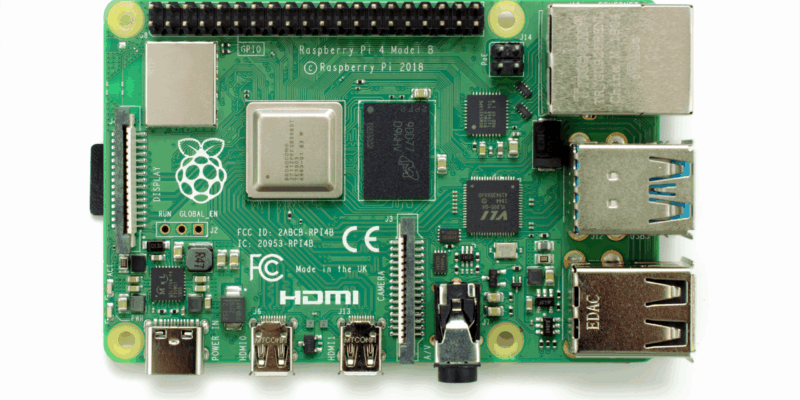
Win one of three Raspberry Pi 4 with 3GB RAM!
Raspberry Pi 4 is still a powerful piece of kit, and this new 3GB version is great for projects and builds that need slightly more than 2GB of RAM but don’t quite need 4GB. We have three to give away and you can enter below. Win 1 of 3 Raspberry Pi 4 3GB
Read more →
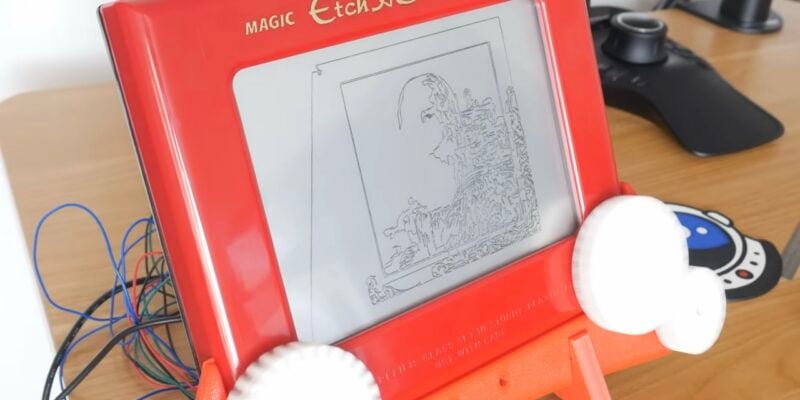
Etch A Sketch CNC machine
The software controlling the Etch A Sketch logs the image, turns it into vectors, turns the vectors into G-code, then sends the G-code to the Etch A Sketch – and it was all written by AI
Read more →