Create a Raspberry Pi 3 Bluetooth tag
By Russell Barnes. Posted

Have a Raspberry Pi 3 switch on your computer when you get home from work, by looking out for a Bluetooth device

Affordable automation is just one of the many popular projects for the Raspberry Pi since its release. We can easily see why: it’s small, easily programmable, and has a huge community backing it with software and support. Now that the Pi 3 has built-in Bluetooth, it’s even easier to create events to help control your house better. We’re going to show off a simple project by creating a Python script that sends a Wake-on-LAN (WoL) magic packet to your PC wh3en it detects a specific mobile phone's Bluetooth signal.
STEP-01 Prepare your Raspberry Pi
We’ll need several extra pieces of software added to the Raspberry Pi to get our little system working. Both connecting to Bluetooth and sending a Wake-on-LAN signal require extra modules for Python. First, grab pip – the Python package installer – so we can add them:
sudo apt-get install python-pip
Once that’s done, you can install the PyBluez and wakeonlan modules with pip, using the following two commands:
sudo pip install pybluez
sudo pip install wakeonlan
STEP-02 Get an address
We’re going to program the Pi to look out for a specific Bluetooth device, using the latter’s MAC address for complete accuracy. While creating this tutorial, we used an Android phone; for any Android device with Bluetooth capabilities, you just need to go to ‘About phone’ and then ‘Settings’ to find the MAC address for the Bluetooth interface. You’ll need to look up information specific to your type of phone or Bluetooth device on how to find its MAC address. Either way, make a note of this address.
STEP-03 Wake up your PC
Wake-on-LAN is built into many PCs. The wired network interface is receptive to the ‘magic packet’ that tells it to turn on. However, the WoL packet needs a MAC address to look for, rather than an IP address, as the PC is off. Boot into the BIOS of your PC; directions to do this should be on the splash screen when you turn your PC on. Enable Wake-on-LAN if it’s available, then boot into your operating system and look up the details on your wired network to find the MAC address.
STEP-04 Get coding
We’re just about ready to get this all working; all we need now is the code. Copy it from the listing or download it from magpi.cc/BluetoothTag. You’ll need to edit it a bit on the Raspberry Pi, replacing the MAC address for the phone with the device that activates the Wake-on-LAN. You’ll also need to edit the MAC address on the line wol.sendmagicpacket to be that of your PC. Press F5 to give it a test; you may need to play about with your device’s Bluetooth settings for it to work properly.
STEP-05 Run at boot
It won’t be easy to run the script in IDLE all the time for this, so it’s best to have the script executed at boot time. Assuming this isn’t a Raspberry Pi you’ll be using for much desktop work, you should first set it to boot to command line and also to automatically log in. Once that’s done, open up your user profile with:
sudo nano /etc/profile
…and add this line to the end of the file:
sudo python /home/py/bluetooth_tag.py &
Save and exit. Rebooting will start the script automatically.
STEP-06 Future edits
The script is easily upgradeable and expandable. You could have it look for multiple Bluetooth devices, you could change the timing (how long it checks and the time between checks), you can have it send a magic packet to multiple systems, etc. That’s just the beginning as well: with such triggers, you can set off many other automation tasks that can be controlled by Python.
Code listing
#/usr/bin/env python

import time
import bluetooth
from wakeonlan import

phone = "ff:ff:ff:ff:ff:ff"

def search():
  devices = bluetooth.discover_devices(duration = 5, lookup_names = True)
  return devices

while True:
  results = search()

  for addr, name in results:
    if addr == phone:
      wol.send_magic_packet('ff:ff:ff:ff:ff:ff')

    time.sleep(20)

Russell runs Raspberry Pi Press, which includes The MagPi, Hello World, HackSpace magazine, and book projects. He’s a massive sci-fi bore.
Subscribe to Raspberry Pi Official Magazine
Save up to 37% off the cover price and get a FREE Raspberry Pi Pico 2 W with a subscription to Raspberry Pi Official Magazine.
More articles

Red Raven cyberdeck
Powered by drills
Read more →
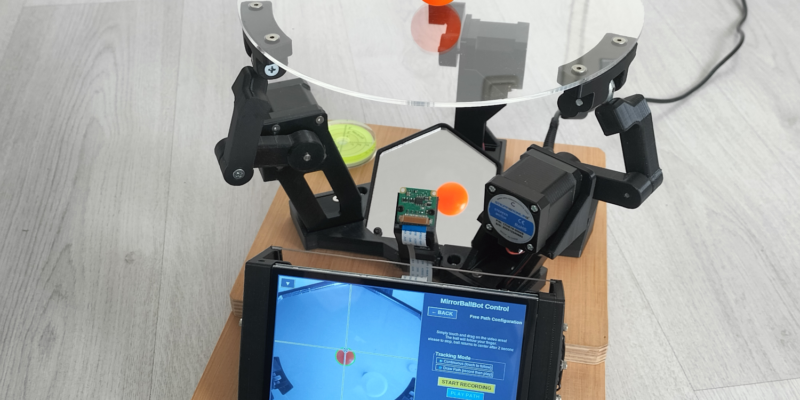
MirrorBallBot
This trick uses no smoke but it does use mirrors
Read more →

Digital Displays in Raspberry Pi Official Magazine 170
Some projects seem more like magic to us than anything else; here’s one of them. This robot by Italian engineer/magician Andrea Favero uses a mirror to widen the field of vision of a Raspberry Pi Camera Module 3, the input from which is processed by Raspberry Pi 4 and used to control three legs to […]
Read more →