Install Raspberry Pi Desktop x86
By Russell Barnes. Posted

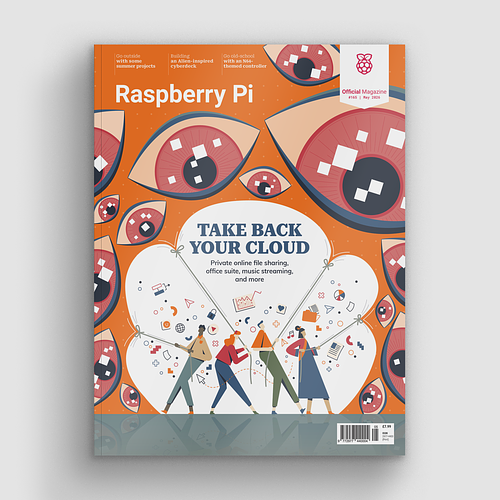
Take back control of your online data, with Raspberry Pi.
Regular readers will know that we first gave away a copy of The Raspberry Pi Desktop operating system with issue 53 of The MagPi. Well, we’re back with an update. The latest version of The Raspberry Pi Desktop x86 is included with the print edition of this month’s magazine.
You can still run the Raspberry Pi Desktop on a PC or Mac computer, but now you can also install the Raspberry Pi Desktop on your hard drive, replacing the previous operating system.
This DVD is an ideal tool for adapting an old computer into a useful coding and hacking machine. The Raspberry Pi Desktop x86 runs on most computers with an Intel x86 architecture. We’ve run it successfully on many old PC and Mac devices.
The full article can be found in The MagPi 60 and was written by Lucy Hattersley.
Let’s look at how to go about doing a basic installation of The Raspberry Pi Desktop x86 on an old PC or Mac computer.
Warning! This tutorial erases the operating system running on your computer.
Subscribe to our YouTube channel for more tutorial videos!
You’ll need
- Mac or PC with optical drive
- The Raspberry Pi Desktop x86 DVD
- The Raspberry Pi Desktop x86 ISO image file
- USB thumb drive
How to: Use The Raspberry Pi Desktop x86
STEP-01 Boot from DVD on a PC
The free DVD bundled with the print edition of The MagPi #60 can be used to start up a PC or Mac computer with an optical DVD drive. Turn off your computer and insert the DVD. Most PC computers are set up to boot from the optical drive before the hard drive, and you should see the Debian GNU/Linux installer boot menu. If it does not boot from the DVD, you need to change the Boot Priority Order in your BIOS settings. On most PCs, you press F1 during boot to do this.
Apple Mac computers are designed to boot from the hard drive first, and not from an inserted DVD. Insert the DVD into your Mac and shut it down. Now power it up and hold down the C key. The menu should boot from the DVD. If this doesn’t work, hold down the Option key (marked ‘alt’) and choose the EFI Boot icon.
STEP-02 Boot menu
The new version of The Raspberry Pi Desktop features a boot menu. Here you’ll see seven options: Run with persistence, Run and reset persistence, Run without persistence, Install, Graphical install, and Advanced options.
STEP-03 Run Raspbian
Choose ‘Run without persistence’ to quickly boot into the Raspberry Pi Desktop x86 operating system. Here you can experiment and play around. Be warned that it won’t save any files. For this, you need to choose ‘Run with persistence’, and attach a USB pen drive to your computer. The persistence drive saves any files you create while using Raspbian (see The MagPi #53 for an in-depth explanation of persistence).
STEP-04 Install
Two options are available: Install and Graphical install. Both offer a similar experience. You’ll find additional settings under Advanced options. Select Install. Run through the Configuration options using the arrow keys and Enter. You’ll now see ‘Loading additional components’.
STEP-05 Partition disks
You have several options for partitioning disks. We’re going with ‘Guided – use entire disk’. Note that this wipes the original operating system! Choose the correct disk from the Partition Disks list and ‘All files in one partition’. Finally, select Finish partitioning, write changes to disk, and Yes.
STEP-06 Installing the system
Wait for the system to be installed on your hard drive. Choose Yes to Install the GRUB boot loader on a hard disk, and pick your device from the list (typically it will be /dev/sda on a single disk machine). When you see ‘Installation is complete’, click Continue. Your computer will reboot and start up in the Raspberry Pi Desktop.
Install Raspberry Pi Desktop on a Mac without a DVD drive using a thumb drive
We had some trouble installing the Raspberry Pi Desktop on an old Macbook. We think it might be because the Macbook drive was very old.
A few people asked us for help on this one. So, we also produced this bonus video which shows you how to take the Raspberry Pi Desktop file and turn it into a Mac thumb drive installer. This enables you to bypass the CD/DVD drive on a Mac and install straight from a USB thumb drive.
Subscribe and never miss an issue
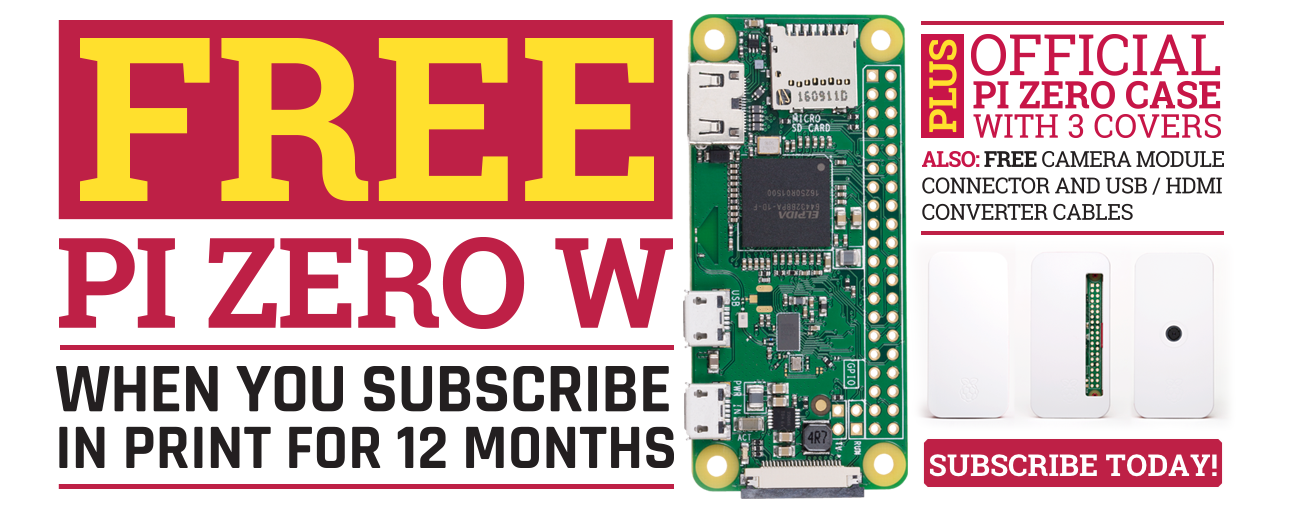
Get a a brand new Raspberry Pi Zero W, a case for it, and a selection of adapter cables with a twelve-month print subscription to The MagPi!

Russell runs Raspberry Pi Press, which includes The MagPi, Hello World, HackSpace magazine, and book projects. He’s a massive sci-fi bore.
Subscribe to Raspberry Pi Official Magazine
Save up to 37% off the cover price and get a FREE Raspberry Pi Pico 2 W with a subscription to Raspberry Pi Official Magazine.