Maker pHAT review
By Phil King. Posted

When trying to learn how to use and program electronics with Raspberry Pi, learners – whether in a classroom setting or at home – face some typical problems. First, you need access to a keyboard and monitor. Second, there’s the sometimes tricky business of attempting to create electronic circuits from separate components without getting it wrong and the possibility of ‘magic smoke’. Then, if your project doesn’t work, it’s hard to tell whether it’s because your wiring or code isn’t right, or maybe both. This isn’t helped by the difficulty of identifying the correct GPIO pins on Raspberry Pi, as they’re unlabelled.
Cytron’s Maker pHAT attempts to solve these issues and make it a lot simpler to get started with physical computing on Raspberry Pi.
Purple PCB
The cool-looking purple PCB has some common components already on board and connected to certain GPIO pins. Along with three small push-buttons, there’s an active buzzer and eight tiny LEDs – we were slightly disappointed that they’re all blue and not a range of colours. A nice touch is the inclusion of a fully labelled, 24-pin breakout header for connecting external components when you’re done playing with the on-board ones.
While you can simply mount the board on your Raspberry Pi’s GPIO header – with or without the supplied 40-pin stacking header – and start coding, the pièce de résistance is the inclusion of a USB to serial module. This enables you to connect the board to a laptop and control (and power) it and Raspberry Pi remotely from there, eliminating the need for a separate monitor and keyboard.
A comprehensive online manual explains how to install a special driver and get the serial connection working using PuTTY on Windows, though not on a Mac. For the latter, use Terminal and enter ls /dev/cu.usbserial-* to find the device number, then screen /dev/cu.usbserial-XXXXXXXX 115200 –L to log in (after pressing ENTER repeatedly). The manual includes a Python demo program, which makes use of GPIO Zero, to get you started – it even enables you to safely shut down Raspberry Pi by pressing two of the buttons together.
Verdict
9/10
An inexpensive and well-designed board for physical computing newbies. We particularly like the option to control it from a USB-connected laptop.

When not editing books and contributing to The MagPi, Phil enjoys playing the piano (badly), astronomy, and watching classic sitcoms.
Subscribe to Raspberry Pi Official Magazine
Save up to 37% off the cover price and get a FREE Raspberry Pi Pico 2 W with a subscription to Raspberry Pi Official Magazine.
More articles
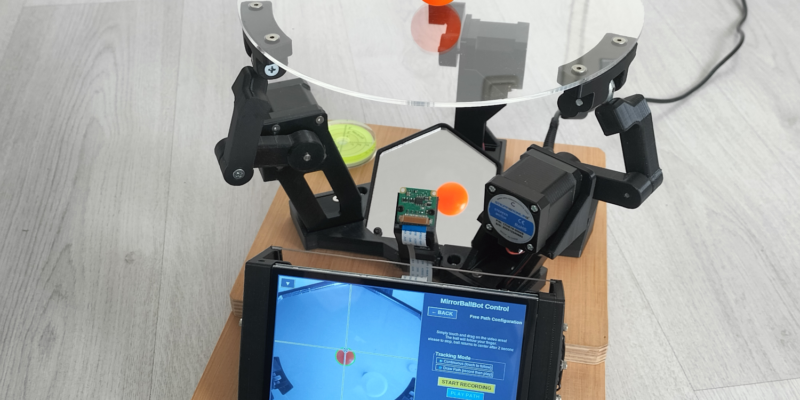
MirrorBallBot
This trick uses no smoke but it does use mirrors
Read more →
Digital Displays in Raspberry Pi Official Magazine 170
Some projects seem more like magic to us than anything else; here’s one of them. This robot by Italian engineer/magician Andrea Favero uses a mirror to widen the field of vision of a Raspberry Pi Camera Module 3, the input from which is processed by Raspberry Pi 4 and used to control three legs to […]
Read more →
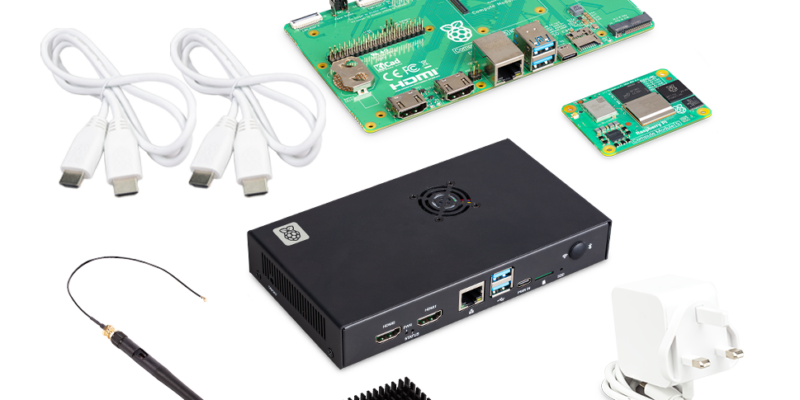
Win a Development Kit for Compute Module 5
Make CM5 development easier with our competition
Read more →