Raspberry Pi ultrasonic theremin: build a space-age instrument
By Russell Barnes. Posted

Build your very own theremin musical instrument using an ultrasonic distance sensor and a little bit of Python and Sonic Pi code

A theremin is a unique musical instrument that produces sound without being touched.
In this tutorial, you will use an ultrasonic distance sensor to control the notes played by Sonic Pi.
You’ll need
The full article can be found in The MagPi 58 and was written by Marc Scott.
An ultrasonic distance sensor has four pins: Gnd (ground), Trig (trigger), Echo (echo), and Vcc (power).
To use the sensor, you need to connect its Gnd pin to a GND (ground) pin on the Raspberry Pi, the Trig pin to a GPIO pin on the Pi, and the Vcc pin to the 5V pin on the Pi.
The Echo pin is a little more complicated. It needs to be connected through a 330 ohm resistor to a GPIO pin on the Raspberry Pi, and that pin needs to be grounded through a 470 ohm resistor. The diagram shows one suggested arrangement. If you’ve wired up the sensor as shown in the diagram below, your echo pin is 17 and your trigger pin is 4.

Click on Menu > Programming > Python 3 (IDLE), to open a new Python shell. Click on New > New File. The code to detect distance is listed in theremin1.py, below. Type it into your new file, then save and run it.
from gpiozero import DistanceSensor
from time import sleep

sensor = DistanceSensor(echo=17, trigger=4)

while True:
    print(sensor.distance)
    sleep(1)
The sensor.distance is the distance in metres between the object and the sensor. Run your code and move your hand backwards and forwards. You should see the distance changing, as it is printed in the shell.
Getting Sonic Pi ready
Sonic Pi will receive messages from your Python script. Open Sonic Pi by clicking on Menu > Programming > Sonic Pi. In the buffer that is open, you can begin by writing a live_loop. This is a loop that runs forever, but can easily be updated, allowing you to experiment. You can add a line to reduce the time it takes for Sonic Pi and Python to talk.
live_loop :listen do
    set_sched_ahead_time! 0.1
end
Next, you can sync the live loop with the messages that will be coming from Python.
live_loop :listen do
    message = sync "/play_this"
end
The message that comes in will be a dictionary, containing the key :args. The value of this key will be a list, where the first item is the MIDI value of the note to be played.
live_loop :listen do
    message = sync "/play_this"
    note = message[:args][0]
end
Lastly, you need to play the note.
live_loop :listen do
    message = sync "/play_this"
    note = message[:args][0]
    play note
end
You can set this live loop to play straight away, by clicking on the Run button. You won’t hear anything yet, as the loop is not receiving any messages.
Sending notes from Python
To finish your program, you need to send note MIDI values to Sonic Pi from your Python file. You’ll need to use the OSC library for this part.
from gpiozero import DistanceSensor
from time import sleep

from pythonosc import osc_message_builder
from pythonosc import udp_client

sensor = DistanceSensor(echo=17, trigger=4)

while True:
    print(sensor.distance)
    sleep(1)
Now you need to create a sender object that can send the message.
sensor = DistanceSensor(echo=17, trigger=4)
sender = udp_client.SimpleUDPClient('127.0.0.1', 4559)

while True:
    print(sensor.distance)
    sleep(1)
You need to convert the distance into a MIDI value. These should be integers (whole numbers), and hover around the value 60, which is middle C. Round the distance to an integer, multiply it by 100, and then add a little bit, so that the note is not too low in pitch.
while True:
    pitch = round(sensor.distance * 100 + 30)
    sleep(1)
To finish off, you need to send the pitch over to Sonic Pi and reduce the sleep time. The final code is listed in theremin3.py below. Save and run your code and see what happens. If all goes well, you’ve made your very own theremin!
Final code listing
theremin3.py
from gpiozero import DistanceSensor
from time import sleep

from pythonosc import osc_message_builder
from pythonosc import udp_client

sensor = DistanceSensor(echo=17, trigger=4)
sender = udp_client.SimpleUDPClient('127.0.0.1', 4559)

while True:
    pitch = round(sensor.distance * 100 + 30)
    sender.send_message('/play_this', pitch)
    sleep(0.1)

Russell runs Raspberry Pi Press, which includes The MagPi, Hello World, HackSpace magazine, and book projects. He’s a massive sci-fi bore.
Subscribe to Raspberry Pi Official Magazine
Save up to 37% off the cover price and get a FREE Raspberry Pi Pico 2 W with a subscription to Raspberry Pi Official Magazine.
More articles
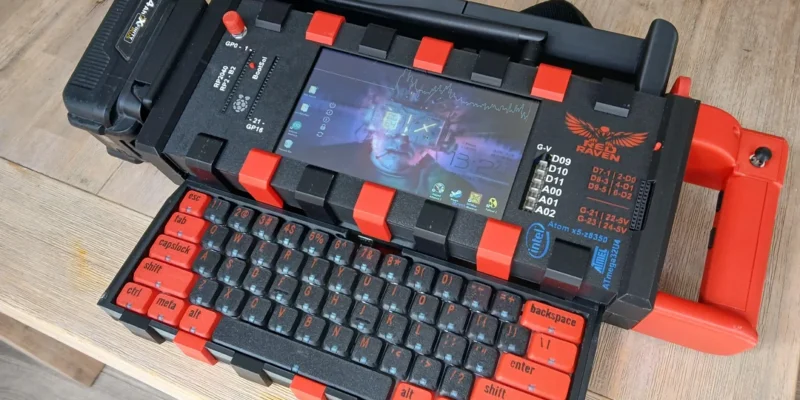
Red Raven cyberdeck
Powered by drills
Read more →
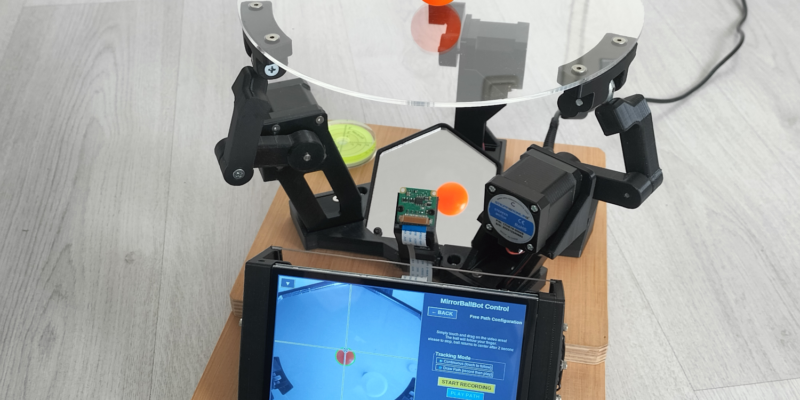
MirrorBallBot
This trick uses no smoke but it does use mirrors
Read more →

Digital Displays in Raspberry Pi Official Magazine 170
Some projects seem more like magic to us than anything else; here’s one of them. This robot by Italian engineer/magician Andrea Favero uses a mirror to widen the field of vision of a Raspberry Pi Camera Module 3, the input from which is processed by Raspberry Pi 4 and used to control three legs to […]
Read more →